
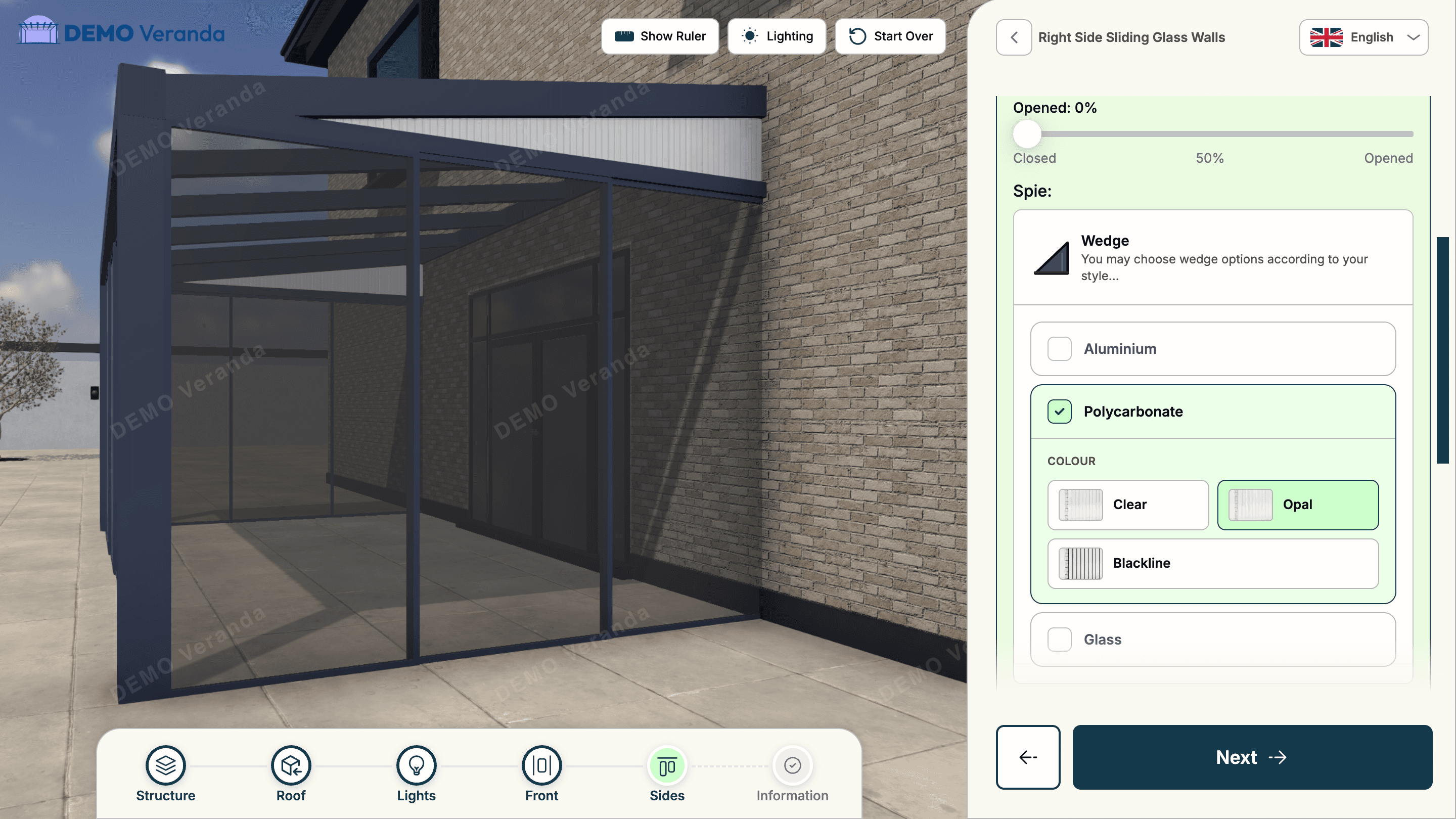
Why your website needs a 3D configurator
Your website receives visitors who are actively searching for outdoor living solutions — and most of them leave without making contact. The conversion rate on a standard outdoor living website (contact form or phone call) typically runs between 1–3% of visitors. For every 100 people who visit your veranda page, 97–99 leave without telling you who they are.
A 3D configurator changes this equation. Rather than asking visitors to contact you, it invites them to design their product immediately. The barrier is lower, the experience is more engaging, and the commitment is higher. Visitors who interact with a configurator for 5–10 minutes are qualitatively different from those who glance at a contact form and bounce.
The mechanics are well supported by web conversion research. According to Google's consumer research, homeowners researching major home improvement purchases spend significantly more time on sites with interactive tools than on static brochure sites — and interactive experiences increase purchase intent by a measurable margin.
Embedding a 3D configurator on your website means converting your existing traffic into qualified, specified leads — without increasing your ad spend.
How embedding works technically
The Zinevu 3D configurator is embedded using a single JavaScript snippet — one line of code that you paste into your HTML. There is no server-side integration required, no build step, and no dependency on your existing website platform.
The embed code loads the configurator as an iframe within your page:
<script
  src="https://cdn.zinevu.com/embed/v1.js"
  data-id="YOUR_CONFIG_ID"
></script>
Replace YOUR_CONFIG_ID with the ID shown in your Zinevu dealer portal under Settings → Embed. The configurator loads in a responsive container that adapts to the width of the element it is placed in.
The embed script communicates back to your page via JavaScript events, allowing you to respond to customer actions — configuration completed, lead submitted — with your own custom logic (for example, pushing to your own analytics or CRM):
window.addEventListener('zinevu:completed', function(event) {
  var lead = event.detail;
  // lead.customer.email, lead.config, lead.totalPrice
  console.log('New lead:', lead.customer.name);
});
The configurator loads from Zinevu's global CDN with performance optimisations including lazy loading of 3D assets, progressive model loading and WebGL detection. For most modern websites, the impact on page load time is minimal when the embed is placed below the fold.
Where to place the configurator on your website
Placement has a significant effect on engagement rates. Here are the most effective positions for a 3D veranda configurator on your website:
Product pages (highest impact)
Embedding the configurator directly on the product page — next to or below the product description — is the highest-converting placement. The visitor is already in product mode; the configurator is the natural next step. Remove or de-emphasise the contact form on product pages where the configurator is embedded — you want visitors' attention on one action.
Dedicated "Design Your Veranda" landing page
Create a standalone page (e.g. /design or /configurator) that features the configurator full-width with minimal surrounding content. This page is ideal as a destination for paid advertising traffic, where you want visitors to take exactly one action. A strong headline ("Design your veranda in 3D. Get an instant price.") above the configurator is all you need.
Homepage hero (for configurator-first businesses)
Dealers who have built their marketing around the configurator sometimes feature it directly on the homepage. A teaser CTA — "Design your veranda in 3D → Get instant price" — that links to the configurator page works well above the fold, with the full configurator embed below or on a linked page.
In email and WhatsApp follow-ups
The configurator does not have to live only on your website. A direct link to your configurator — hosted at your white-label domain — can be shared in email replies, WhatsApp messages, or social media posts. "Skip the showroom visit — design yours online and I'll send you a quote within 24 hours" is a compelling proposition for busy homeowners.
Step-by-step: from portal to live embed
Here is the complete process for getting a Zinevu 3D configurator embedded on your website:
- Set up your product catalogue. In your Zinevu dealer portal, configure the structures, options and pricing rules you want available to customers. This is the most time-consuming step — most dealers complete it in 2–4 hours on their first day.
- Get your embed ID. Navigate to Settings → Embed in your dealer portal. Copy the
data-idvalue shown — this is your unique configurator identifier. - Add the script to your website. Paste the embed snippet into the HTML of any page where you want the configurator to appear. If you use a website builder (WordPress, Webflow, Squarespace, Wix), paste it into a Custom HTML block or the page's header/footer code injection area.
- Test in staging. Load the page in a private browser window and complete a test configuration. Check that the lead appears in your Zinevu CRM lead inbox.
- Set up your white-label domain (optional but recommended). Follow the CNAME configuration process described in our white-label configurator guide to serve the configurator from your own domain.
- Go live. Publish the page. The configurator is now live and accepting leads.
The process typically takes less than a business day from account creation to live embed. Read our full getting-started guide on the Zinevu Academy for step-by-step screenshots of each stage.
Capturing and routing leads from the configurator
Every completed configuration generates a lead in your Zinevu CRM automatically. The lead includes:
- Customer name, email address and phone number
- The full product configuration (structure type, dimensions, materials, options)
- A 3D render of the configured structure
- The total configured price
- A timestamp and source URL
From the CRM, you can respond to leads with a personalised message and an attached formal quote PDF, or convert them directly into a project in Zinevu's project management flow.
For teams that use external CRM systems (HubSpot, Salesforce, Pipedrive), the Zinevu API and webhook system allows leads to be pushed automatically to your existing tools. See the Developers & API page for technical details.
For advertising and analytics teams, the zinevu:completed JavaScript event can be used to fire conversion tracking events in Google Analytics 4, Google Tag Manager or Meta Pixel — attributing configurator completions to specific ad campaigns.
Performance considerations for embedded configurators
3D rendering in a browser is computationally intensive, and embedding a configurator adds weight to your page. Here are the best practices for maintaining site performance:
- Load below the fold. Use lazy loading — the Zinevu embed script does this by default, initialising only when the configurator enters the viewport. This keeps your above-the-fold page load fast.
- Test on mobile devices. WebGL performance varies across mobile hardware. The Zinevu configurator includes performance optimisations for lower-end mobile devices, but it is worth testing on the types of devices your customers typically use.
- Avoid loading on the homepage. Unless the configurator is your primary CTA, avoid embedding it on high-traffic pages like the homepage. Use a linked configurator page instead — the click adds intention before the 3D load begins.
- Monitor with Core Web Vitals. Google's Core Web Vitals (LCP, CLS, FID) measure page experience and affect search rankings. If the configurator embed causes CLS issues (layout shift), wrap it in a fixed-height container to reserve space before it loads.
For most outdoor living dealer websites, the Zinevu embed adds minimal performance overhead when placed below the fold and loaded lazily. If you have specific performance concerns, the Zinevu Help Centre has guides on optimising embed placement.